User Guide מדריך שימוש
Step-by-step walkthrough of every Mugah feature, with practical tips along the way. הדרכה מפורטת לכל תכונות מוגה, עם דגשים מעשיים לאורך הדרך.
Installation התקנה
Mugah is a Microsoft Word add-in. Follow these steps to install it on your computer. מוגה הוא תוסף ל-Microsoft Word. עקבו אחר השלבים הבאים כדי להתקינו במחשב שלכם.
-
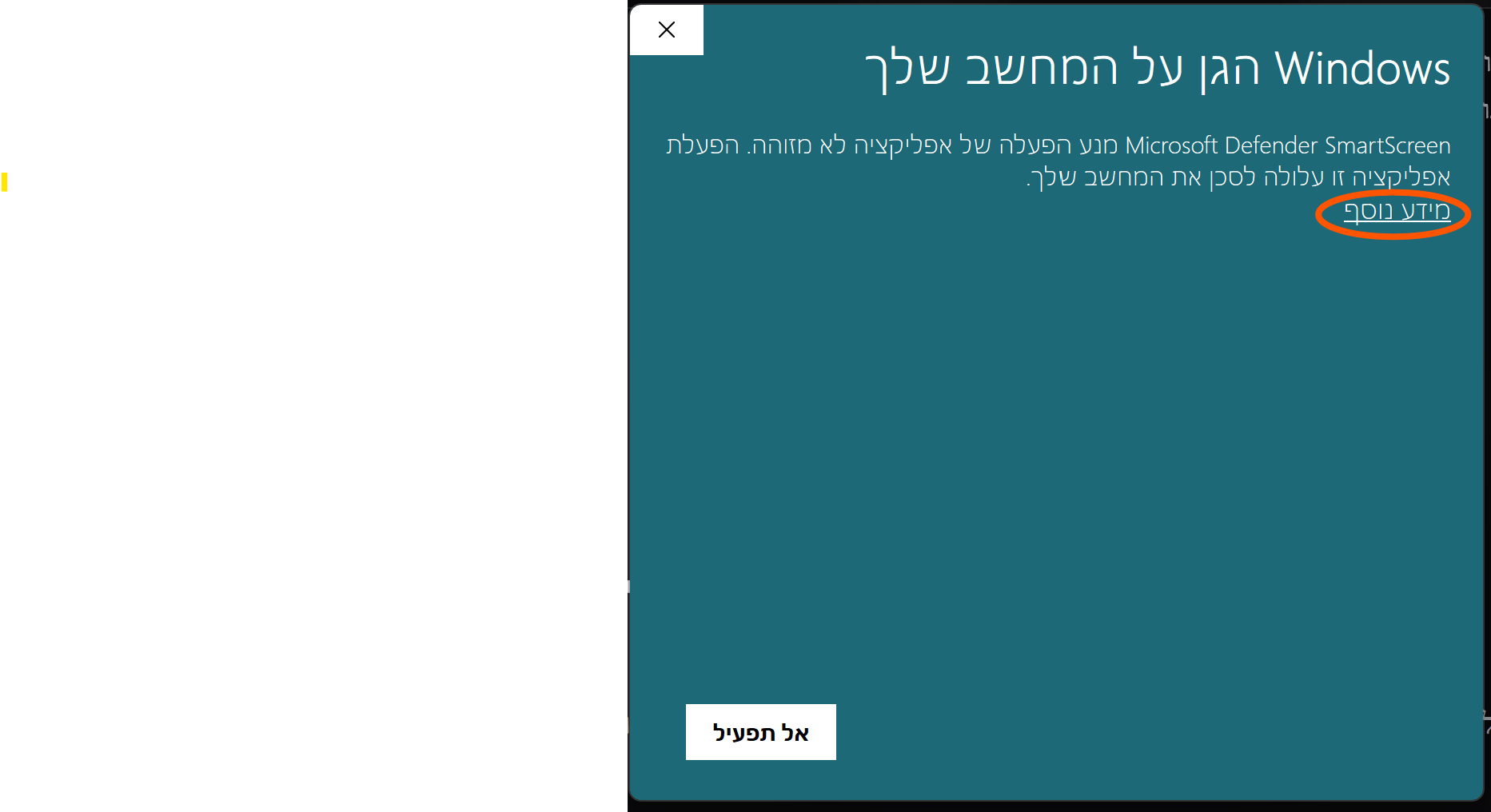
Allow the installer to run אפשרו להתקנה לרוץ Windows SmartScreen may block the installer. Click "More info" and then "Run anyway" to proceed. ייתכן ש-Windows SmartScreen יחסום את ההתקנה. לחצו על "מידע נוסף" ולאחר מכן על "הפעל בכל זאת" כדי להמשיך.
-
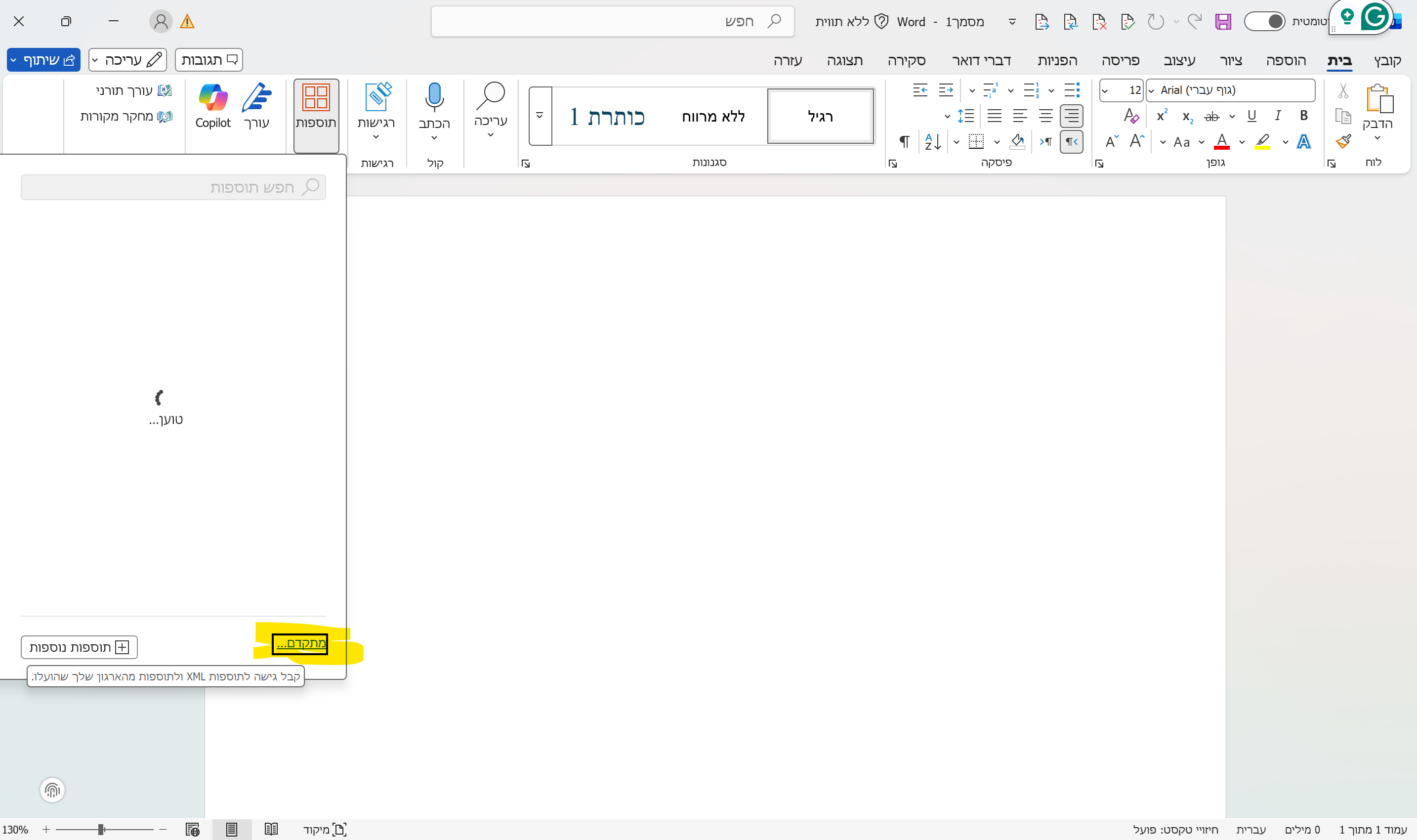
Open the add-ins panel in Word פתחו את חלונית התוספות ב-Word After the installation completes, open Word and click "Add-ins" in the ribbon, then click "More Add-ins..." at the bottom. לאחר סיום ההתקנה, פתחו את Word ולחצו על "תוספות" ברצועת הכלים, ולאחר מכן לחצו על "מתקדם..." בתחתית.
-
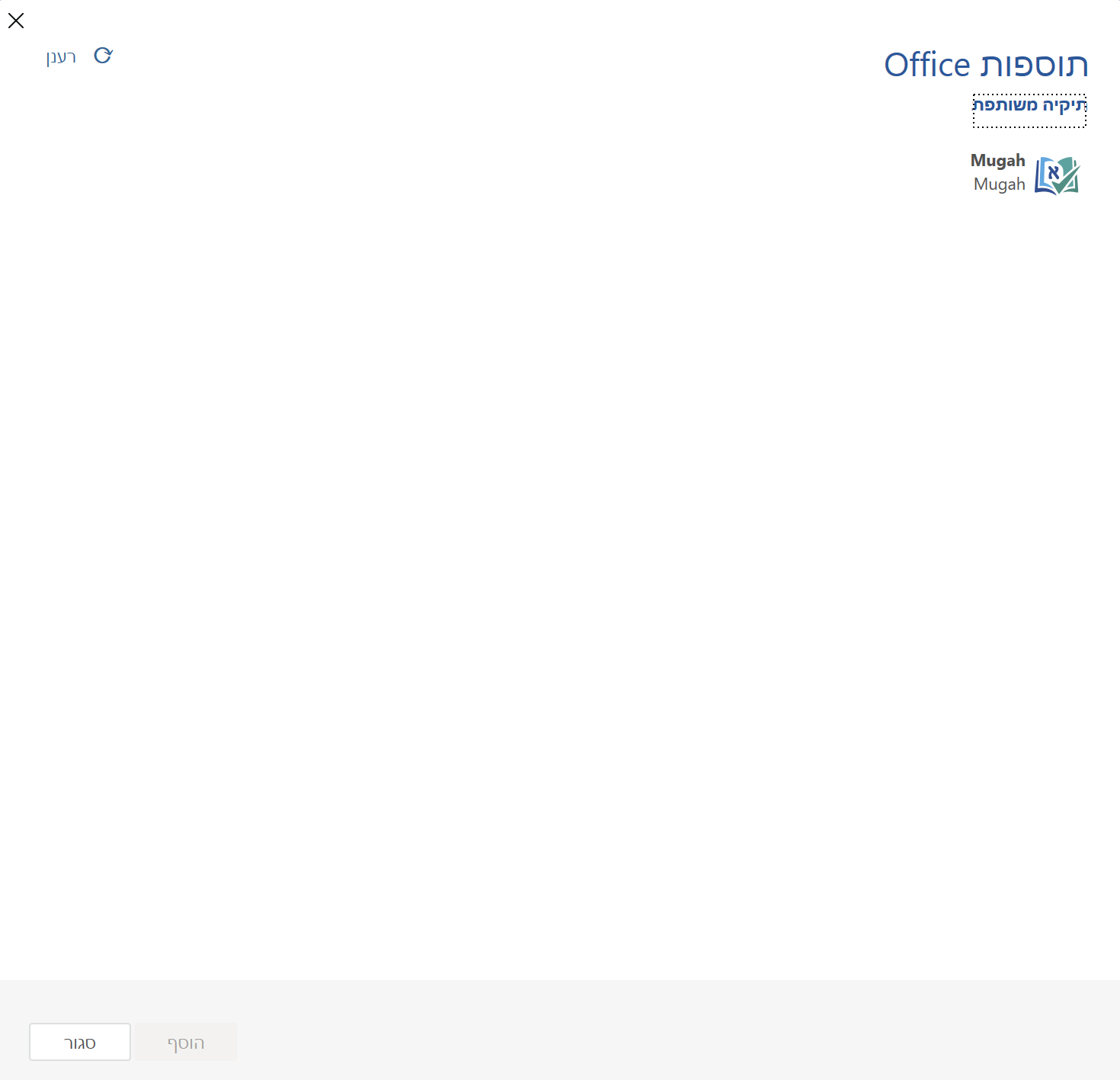
Add Mugah from the shared folder הוסיפו את מוגה מהתיקיה המשותפת In the Office Add-ins dialog, go to "Shared Folder", select Mugah, and click "Add". בחלון תוספות Office, עברו ל"תיקיה משותפת", בחרו את Mugah ולחצו על "הוסף".
Getting Started צעדים ראשונים
Mugah integrates directly into Microsoft Word as a side panel. Each tool opens in its own panel on the right side of your document. מוגה משתלבת ישירות ב-Microsoft Word כחלונית צד. כל כלי נפתח בחלונית משלו בצד ימין של המסמך.

Mugah Editor עורך תורני
Proofreading, source verification, review, and rewrite — all in one panel with tabs. הגהה, אימות מקורות, ביקורת ושכתוב — הכל בחלונית אחת עם לשוניות.

Source Research חיפוש חכם
Search for Torah sources relevant to your text using AI-powered discovery. חפשו מקורות תורניים הרלוונטיים לטקסט שלכם באמצעות מנוע חיפוש חכם.

Source Index מפתח מקורות
Automatically generate an organized bibliography of all sources cited in your document. הפקה אוטומטית של מפתח מקורות מאורגן לכל המקורות המצוטטים במסמך שלכם.
Sign In התחברות
When you first open any Mugah panel, you'll be asked to sign in with your Google account. This is required to track your credits and save your preferences. You only need to sign in once — all three panels share the same session. בפתיחה הראשונה של כל חלונית מוגה, תתבקשו להתחבר עם חשבון Google. ההתחברות נדרשת כדי לעקוב אחר הנקודות שלכם ולשמור את ההעדפות. מספיק להתחבר פעם אחת — כל שלוש החלוניות חולקות את אותה ההתחברות.
Proofreading הגהה
The proofreading tool scans your document for spelling, grammar, style, and content issues specific to Torah texts. It uses AI that understands Hebrew religious texts, rabbinical terminology, and traditional formatting conventions. The quality of its output depends largely on the editing rules you provide. כלי ההגהה סורק את המסמך שלכם ומחפש שגיאות כתיב, דקדוק, סגנון ותוכן הייחודיות לטקסטים תורניים. הוא משתמש במנוע חכם שמבין טקסטים תורניים בעברית או בארמית, מונחים רבניים ומוסכמות ניסוח וציון מקובלות. איכות ההגהה תלויה במידה רבה בכללי העריכה שתספקו.
Editing Rules כללי עריכה
Editing rules tell the AI exactly what to look for and how to fix it. The more specific your rules, the better your results. To manage them, click the editing rules settings button on the proofreading page. You can create multiple rule sets, give each a name, and switch the active set depending on the project. Only one rule set is active at a time. כללי העריכה מנחים את המערכת בדיוק מה לחפש ואיך לתקן. ככל שהכללים ספציפיים יותר, כך התוצאות טובות יותר. לניהול הכללים, לחצו על כפתור הגדרות כללי עריכה בדף ההגהה. ניתן ליצור סטים מרובים, לתת לכל אחד שם, ולהחליף את הסט הפעיל בהתאם לפרויקט. רק סט כללים אחד פעיל בכל רגע.
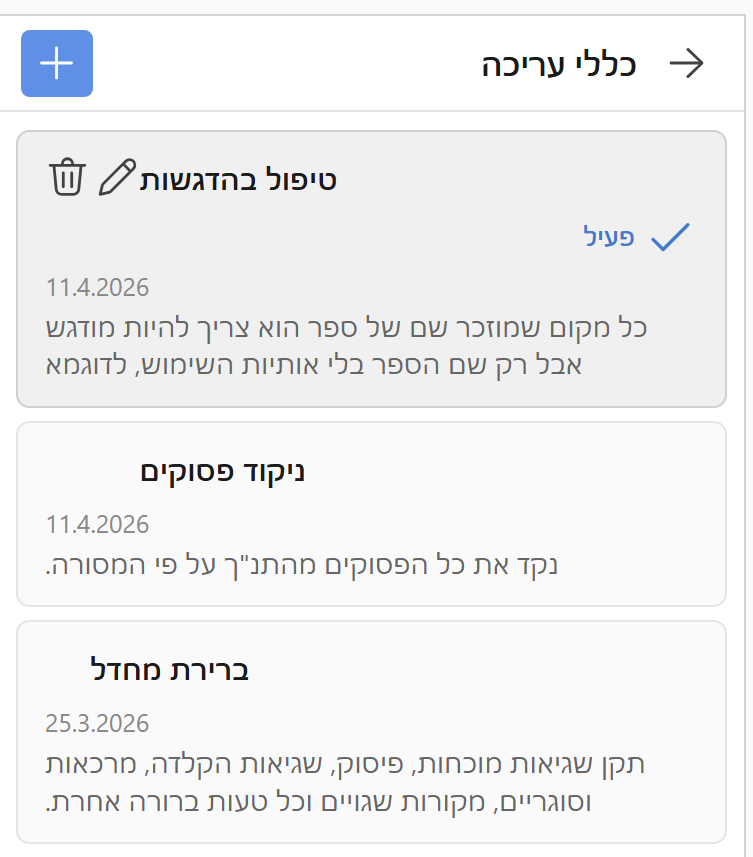
Good rules are specific. For example: כללים טובים הם ספציפיים. למשל:
- "Use nikud only for direct biblical quotes. Remove nikud from all other text." "השתמש בניקוד רק בציטוטים ישירים מהתנ"ך. הסר ניקוד מכל שאר הטקסט."
- "Rambam references must follow the format: רמב"ם, הלכות [section], פרק [X], הלכה [Y]." "הפניות לרמב"ם חייבות להיות בפורמט: רמב"ם, הלכות [נושא], פרק [X], הלכה [Y]."
- "Replace all instances of 'ב"ה' at the start of a page with 'בס"ד'." "החלף את כל המופעים של 'ב"ה' בראש עמוד ב-'בס"ד'."
Vague rules like "fix the formatting" or "make it better" won't produce useful results — the AI doesn't know your preferences unless you spell them out. כללים מעורפלים כמו "תקן את העיצוב" או "שפר את הטקסט" לא יניבו תוצאות שימושיות — המערכת לא יודעת את ההעדפות שלכם אלא אם תפרטו אותן.
Teach From Your Edits לימוד מההגהות שלכם
As you accept (✓) or reject (✗) suggestions during proofreading, Mugah remembers your decisions. You can turn those decisions into examples that guide future proofreading runs. בכל פעם שאתם מאשרים (✓) או דוחים (✗) הצעות במהלך ההגהה, מוגה זוכרת את ההחלטות שלכם. ניתן להפוך את ההחלטות האלה לדוגמאות שיכוונו את ההגהות הבאות.
Open a rule set in the editor and click the add examples from document button (next to Save). A dialog shows every accepted and rejected pair across the document's proofreading history. Remove any you don't want, then confirm. The examples are merged into the rule set under a section titled דוגמאות מתיקונים קודמים (examples from previous corrections), grouped into "desired corrections" and "corrections to avoid." פתחו סט כללים לעריכה ולחצו על כפתור הוסף דוגמאות מהמסמך (ליד כפתור השמירה). חלון ידידותי יציג את כל זוגות התיקונים שאישרתם ושדחיתם בכל ההגהות של המסמך. הסירו את אלה שאינכם רוצים, ואשרו. הדוגמאות יתווספו לסט הכללים תחת הכותרת דוגמאות מתיקונים קודמים, מחולקות ל"תיקונים רצויים" ו"תיקונים שיש להימנע מהם."
Clicking the button again after more proofreading merges new examples without duplicating existing ones. The button is disabled when there are no reviewed changes yet. לחיצה חוזרת על הכפתור לאחר הגהות נוספות תוסיף דוגמאות חדשות בלי לכפול את הקיימות. הכפתור מושבת כל עוד אין שינויים שנסקרו במסמך.
Advanced Uses שימושים מתקדמים
The proofreading tool is more versatile than basic spell-checking. With the right rules, you can use it for heavy editorial work: כלי ההגהה גמיש הרבה יותר מבדיקת איות בסיסית. עם הכללים הנכונים, ניתן להשתמש בו לעריכה מהותית:
- Formatting consistency — "abbreviations should always use geresh (׳) not apostrophe (')" or "use double-quotes for citations, single-quotes for emphasis." עקביות עיצובית — "קיצורים צריכים תמיד להשתמש בגרש (׳) ולא באפוסטרוף (')" או "השתמש במירכאות כפולות לציטוטים, ובמירכאות בודדות להדגשה."
- Nikud — "add nikud only for biblical quotes" or "remove nikud from modern Hebrew text" or "ensure consistent nikud style throughout." ניקוד — "הוסף ניקוד רק לציטוטים מהתנ"ך" או "הסר ניקוד מטקסט עברי מודרני" או "וודא סגנון ניקוד עקבי לאורך כל הטקסט."
- Source citation format — enforce a consistent style, e.g., "Talmud references should use the format: Masechet Daf Amud." פורמט ציטוט מקורות — אכפו סגנון אחיד, למשל: "הפניות לתלמוד צריכות להיות בפורמט: מסכת דף עמוד."
- Terminology standardization — preferred spellings for Yiddish-origin words, transliteration standards, or house style conventions. תקנון מונחים — איותים מועדפים למילים ממקור יידיש, תקני תעתיק או מוסכמות סגנון הבית.
- Exclusions — Tell the AI what NOT to touch: "do not modify direct biblical quotes," "leave Aramaic text as-is," or "don't change text inside parentheses." החרגות — ציינו למערכת מה לא לשנות: "אל תשנה ציטוטים ישירים מהתנ"ך," "השאר טקסט ארמי כמו שהוא," או "אל תשנה טקסט בתוך סוגריים."
- Text formatting — You can use rules that apply bold, italic, or yellow highlight formatting. Other formatting types (underline, strikethrough, font type, color, etc.) are not supported. עיצוב טקסט — ניתן להשתמש בכללים שמחילים עיצוב כתב עבה (בולד), נטוי (איטליק) או סימון צהוב (מרקר). סוגי עיצוב אחרים (קו תחתון, קו חוצה, סוג הגופן, הצבע וכו') אינם נתמכים.
Create separate rule sets for different types of work — one for "Sefer editing" that enforces traditional formatting, another for "Article editing" with academic conventions. You can store up to 50 rule sets and switch between them as needed. צרו סטים נפרדים לסוגים שונים של עבודה — אחד ל"עריכת ספר" בסגנון תורני קלאסי, ואחר ל"עריכת מאמר" בעברית קלה. ניתן לשמור עד 50 סטים ולהחליף ביניהם לפי הצורך.
Running a Scan הפעלת סריקה
-
Open the Editor panel פתחו את חלונית העורך Click "Mugah Editor" in Word's Home tab. The proofreading tab is selected by default. לחצו על "עורך תורני" בלשונית בית של Word. לשונית ההגהה נבחרת כברירת מחדל.
-
Choose what to scan בחרו מה לסרוק Select which sections to include: Paragraphs, Footnotes, and/or Endnotes. You can also select specific text to scan only that selection. בחרו אילו חלקים לכלול: פסקאות, הערות שוליים ו/או הערות סיום. ניתן גם לסמן טקסט ספציפי כדי לסרוק רק את הקטע הנבחר.
-
Start the scan התחילו את הסריקה Click "Start Scanning". A progress bar shows the scan status and number of changes found. לחצו על "התחל סריקה". סרגל התקדמות מציג את מצב הסריקה ומספר התיקונים שנמצאו.
-
Review suggestions סקרו את ההצעות Each suggestion shows the original text and the suggested replacement, plus an explanation. Accept or reject each change individually. Clicking on a card navigates to that location in the document. כל הצעה מציגה את הטקסט המקורי ואת ההחלפה המוצעת, בתוספת הסבר. קבלו או דחו כל שינוי בנפרד. לחיצה על כרטיס מנווטת למיקום הרלוונטי במסמך.
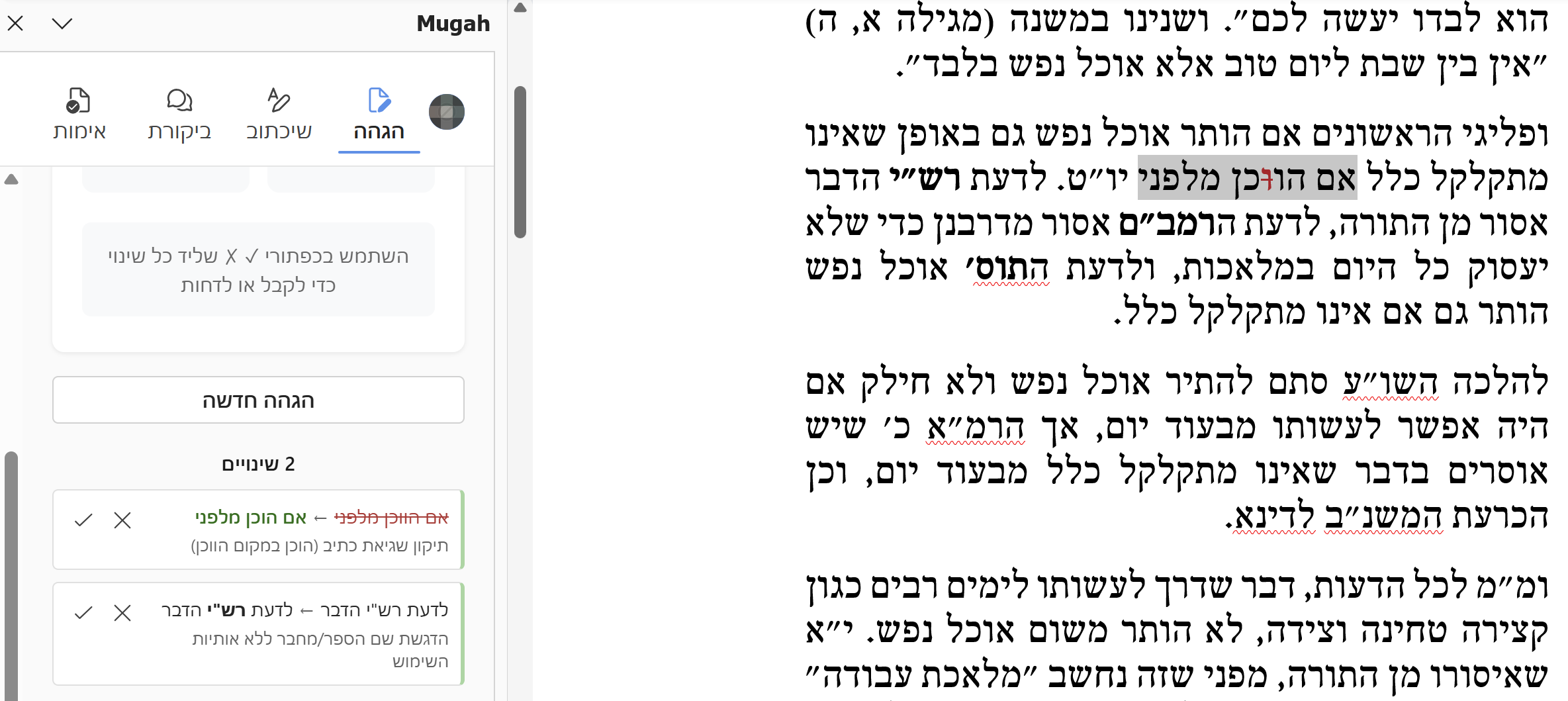
All accepted corrections are applied using Word's built-in Track Changes, so you can review them later in Word's Review tab. You can also accept or reject changes directly from the Mugah panel, and even restore a rejected change afterwards. כל התיקונים המאושרים מוחלים באמצעות תכונת מעקב שינויים המובנית ב-Word, כך שתוכלו לסקור אותם מאוחר יותר בלשונית סקירה. ניתן גם לקבל או לדחות שינויים ישירות מתוך התוסף עצמו, ואף לשחזר שינוי שנדחה.
High Accuracy Mode דיוק גבוה
By default, proofreading uses a fast, lightweight model suitable for most editing tasks. When you need higher precision — for example, for final pre-publication proofreading or complex texts — enable the "High Accuracy" toggle. This switches to a more advanced model that produces more accurate results, but is slower and consumes more credits. כברירת מחדל, ההגהה משתמשת במודל מהיר וקל שמתאים לרוב משימות העריכה. כשנדרש דיוק גבוה יותר — למשל, להגהה סופית לפני פרסום או לטקסטים מורכבים — הפעילו את מתג "דיוק גבוה". מתג זה עובר למודל מתקדם יותר שמניב תוצאות מדויקות יותר, אך איטי יותר וצורך יותר נקודות.
Review Comments הערות סקירה
Enable the "Add Review Comments" toggle to attach a Word comment with the AI's reasoning to every applied correction. Each comment is anchored to the changed text and prefixed with מוגה:, so reviewers working in Word's Review pane can see why a change was suggested without leaving their normal workflow — and the document carries its own audit trail when shared with others. הפעילו את מתג "הוסף הערות סקירה" כדי לצרף הערת Word עם נימוק המערכת לכל תיקון מוחל. כל הערה מעוגנת לטקסט ששונה ומתחילה בקידומת מוגה:, כך שמגיהים שעובדים בלשונית הסקירה של Word יכולים לראות מדוע הוצע השינוי בלי לצאת מסביבת העבודה הרגילה שלהם — והמסמך נושא איתו תיעוד עצמאי כשהוא משותף עם אחרים.
When you accept a change from the Mugah panel, the linked comment is marked resolved. When you reject a change, the comment is deleted. The toggle is off by default and its state is remembered between sessions. כשאתם מאשרים שינוי מתוך חלונית מוגה, ההערה המקושרת מסומנת כנפתרה. כשאתם דוחים שינוי, ההערה נמחקת. המתג כבוי כברירת מחדל ומצבו נשמר בין הפעלות.
PDF Proofreading הגהת PDF
PDF Proofreading is a standalone web app for proofreading PDF files directly — typeset galleys, scanned books, and third-party publications — without first converting them into a Word document. It brings the same Torah-aware proofreading engine to material you only have as a finished PDF, so you can catch errors in a book before it goes to print or review a publication you didn't author. הגהת PDF היא אפליקציית ווב עצמאית להגהת קובצי PDF ישירות — עמודי דפוס מוכנים, ספרים סרוקים ופרסומים של אחרים — בלי להמיר אותם תחילה למסמך Word. היא מביאה את אותו מנוע הגהה תורני גם לחומר שקיים אצלכם רק כקובץ PDF מוגמר, כך שתוכלו לתפוס שגיאות בספר לפני שהוא יוצא לדפוס או לעבור על פרסום שלא אתם כתבתם.
Where to Find It היכן למצוא
Unlike the other tools, PDF Proofreading is not one of the Word taskpane tabs. It is a separate page that opens in your web browser, at pdf-proofread.html on the Mugah host (for example, https://<the-app-host>/pdf-proofread.html). Open it in any modern browser — no Word document is required.
בשונה משאר הכלים, הגהת PDF אינה אחת מלשוניות התוסף ב-Word. זהו דף נפרד שנפתח בדפדפן, בכתובת pdf-proofread.html בכתובת השרת של מוגה (למשל, https://<כתובת-השרת>/pdf-proofread.html). פתחו אותו בכל דפדפן עדכני — אין צורך במסמך Word.
How Your File Is Handled כיצד הקובץ שלכם מטופל
When you upload a PDF, the file is opened locally in your browser (using a built-in PDF engine, mupdf-WASM). The full file is never sent to the server — only the page images and the extracted text of the pages you actually choose to scan are transmitted for analysis. Everything else stays on your machine. כשאתם מעלים קובץ PDF, הקובץ נפתח מקומית בדפדפן שלכם (באמצעות מנוע PDF מובנה, mupdf-WASM). הקובץ המלא לעולם אינו נשלח לשרת — רק תמונות העמודים והטקסט המחולץ של העמודים שתבחרו לסרוק בפועל נשלחים לניתוח. כל השאר נשאר במחשב שלכם.
Running a Scan הפעלת סריקה
-
Upload a PDF העלו קובץ PDF Open the page and select your PDF. It loads in the browser and the pages appear for you to work with. פתחו את הדף ובחרו את קובץ ה-PDF שלכם. הוא ייטען בדפדפן והעמודים יוצגו לעבודה.
-
Choose page ranges בחרו טווחי עמודים Pick which pages to proofread. You can select non-continuous ranges and skip pages you don't need — useful for scanning only specific chapters or sections. בחרו אילו עמודים להגיה. ניתן לבחור טווחים לא רציפים ולדלג על עמודים שאינכם צריכים — שימושי לסריקת פרקים או חלקים מסוימים בלבד.
-
Run and watch the results stream הפעילו וצפו בתוצאות מתעדכנות Click run. The selected pages are processed in groups, and results stream in group by group as they finish — you don't have to wait for the entire file. לחצו על הפעלה. העמודים הנבחרים מעובדים בקבוצות, והתוצאות מופיעות קבוצה אחר קבוצה ככל שהן מסתיימות — אין צורך להמתין לכל הקובץ.
-
Review the page-preview strip עברו על פס תצוגת העמודים A preview strip shows every page with a status color: green for clean, yellow for minor issues, red for issues that need attention, and gray for pages that were skipped or not yet run. פס תצוגה מקדימה מציג כל עמוד עם צבע מצב: ירוק לעמוד נקי, צהוב לתיקונים קלים, אדום לתיקונים הדורשים תשומת לב, ואפור לעמודים שדולגו או שטרם נסרקו.
-
Edit the findings ערכו את הממצאים Go through the suggested corrections and edit them as needed before exporting — you stay in full control of what ends up in the output. עברו על התיקונים המוצעים וערכו אותם לפי הצורך לפני הייצוא — השליטה המלאה על מה שייכלל בפלט נשארת בידיכם.
Exporting Results ייצוא תוצאות
When you're done, you can export an annotated PDF with the findings marked on the pages, and/or a JSON file with the structured results for further processing. Your run history is kept locally in the browser (localStorage), so you can return to previous scans on the same machine. בסיום, ניתן לייצא PDF מוער שבו הממצאים מסומנים על העמודים, ו/או קובץ JSON עם התוצאות המובנות לעיבוד נוסף. היסטוריית ההפעלות נשמרת מקומית בדפדפן (localStorage), כך שתוכלו לחזור לסריקות קודמות באותו מחשב.
High Accuracy Mode דיוק גבוה
Like the Word proofreading tool, PDF Proofreading offers an accuracy toggle between a fast model and a more precise one. Use the precise option when you need higher accuracy for final pre-publication work; it is slower and consumes more credits. כמו כלי ההגהה ב-Word, גם הגהת PDF מציעה מתג דיוק בין מודל מהיר למודל מדויק יותר. השתמשו באפשרות המדויקת כשנדרש דיוק גבוה לעבודה סופית לפני פרסום; היא איטית יותר וצורכת יותר נקודות.
Source Grounding ביסוס במקורות
Source Grounding is an optional feature that enhances proofreading by cross-referencing Torah citations during the scan. When enabled, the AI verifies quotes and references it encounters while proofreading, catching inaccurate citations as part of the proofreading flow. ביסוס במקורות הוא תכונה אופציונלית שמשפרת את ההגהה על ידי הצלבת ציטוטים תורניים במהלך הסריקה. כשהתכונה מופעלת, המערכת מאמתת ציטוטים והפניות שהיא נתקלת בהם במהלך ההגהה, ותופסת ציטוטים לא מדויקים כחלק מתהליך ההגהה.
How to Enable כיצד להפעיל
Toggle the "Source Grounding" switch in the Editor panel header. The setting is saved and persists between sessions. הפעילו את מתג "ביסוס במקורות" בכותרת חלונית העורך. ההגדרה נשמרת ונשארת בין הפעלות.
Recommendation: Use Source Grounding only when source accuracy is critical. For routine spelling and grammar checks, keep it off. When you need both proofreading and source verification, consider whether running them as separate operations (proofreading first, then source verification) gives you better control over credit spending. הפעלת ביסוס במקורות מגדילה משמעותית את צריכת הנקודות. כשהתכונה מופעלת, כל סריקת הגהה גם מבצעת חיפוש מקורות לכל ציטוט שהיא נתקלת בו, מה שדורש עיבוד נוסף. סריקה שבדרך כלל עולה מספר נקודות עשויה לעלות פי כמה עם ביסוס במקורות מופעל.
המלצה: השתמשו בביסוס במקורות רק כאשר דיוק המקורות הוא קריטי. לבדיקות כתיב ודקדוק שגרתיות, השאירו את התכונה כבויה. כאשר אתם צריכים גם הגהה וגם אימות מקורות, שקלו האם הפעלתם כפעולות נפרדות (קודם הגהה, אחר כך אימות מקורות) נותנת לכם שליטה טובה יותר בהוצאת הנקודות.
Text Rewrite שכתוב טקסט
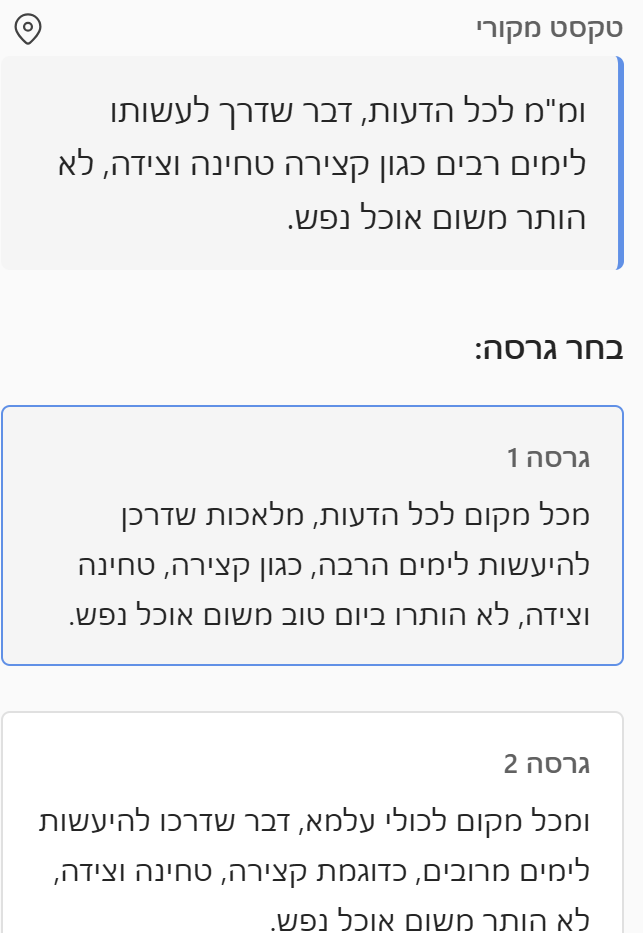
The Rewrite tool rephrases selected text in different styles while preserving the meaning. Select text in your Word document, choose a style, and click "Rewrite". The tool generates alternative versions that you can apply with a single click. כלי השכתוב מנסח מחדש טקסט מסומן בסגנונות שונים תוך שמירה על המשמעות. סמנו טקסט במסמך ה-Word, בחרו סגנון ולחצו על "שכתוב". הכלי מייצר גרסאות חלופיות שניתן להחיל בלחיצה אחת.
Styles סגנונות
Improve / Shorter / Longer / Authentic Hebrew / Natural Hebrew / Custom שיפור / קיצור / הרחבה / לשון קודש / עברית טבעית / מותאם אישית
The "Custom" style opens a text field where you can describe exactly what you want — for example, "rewrite in the style of the Chazon Ish" or "rephrase for a younger audience." סגנון "מותאם אישית" פותח שדה טקסט בו תוכלו לתאר בדיוק מה אתם רוצים — למשל, "שכתב בסגנון החזון איש" או "נסח מחדש לקהל צעיר יותר."
Use the suggestions slider (1–4) to control how many alternative versions are generated. The results appear as cards — click on any card to immediately replace the selected text in your document with that version. All rewrites are saved to history so you can revisit them later. השתמשו בסליידר מספר ההצעות (1–4) כדי לשלוט בכמה גרסאות חלופיות ייווצרו. התוצאות מופיעות ככרטיסים — לחצו על כרטיס כלשהו כדי להחליף מיד את הטקסט המסומן במסמך בגרסה זו. כל השכתובים נשמרים בהיסטוריה כך שתוכלו לחזור אליהם מאוחר יותר.
Document Review ביקורת מסמך
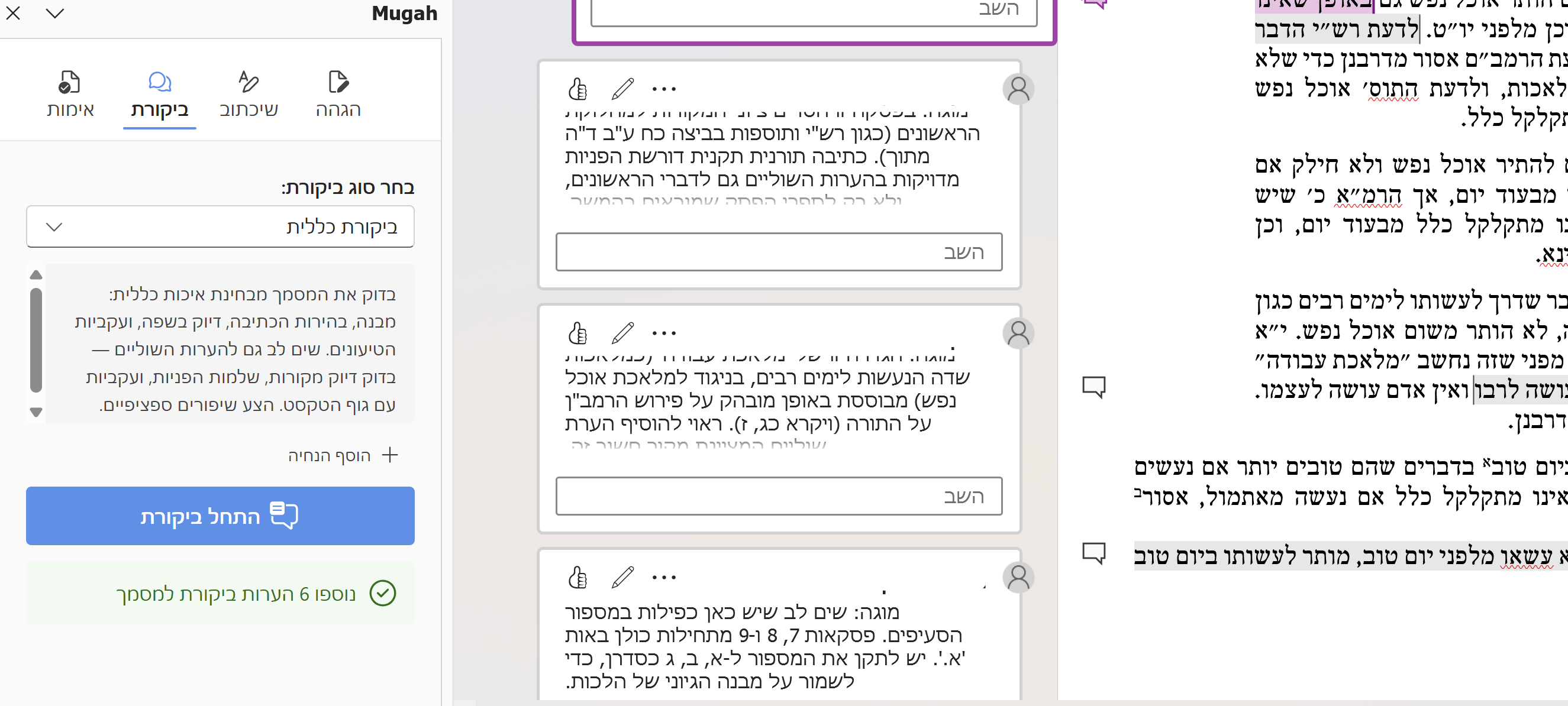
The Review tool provides AI-driven document analysis using customizable review prompts. Unlike proofreading (which fixes individual words and phrases), review looks at the document holistically and adds comments. כלי הביקורת מספק ניתוח מסמך חכם באמצעות הנחיות ביקורת הניתנות להתאמה. בניגוד להגהה (שמתקנת מילים וביטויים בודדים), הביקורת מסתכלת על המסמך בצורה כוללנית ומוסיפה הערות.
Built-in Review Prompts הנחיות ביקורת מובנות
General Review ביקורת כללית
Overall quality check — structure, clarity, and content. בדיקת איכות כללית — מבנה, בהירות ותוכן.
Find Duplicates אתר כפילויות
Identifies repeated sources, ideas, or phrases. מזהה מקורות, רעיונות או ביטויים חוזרים.
Logical Consistency עקביות לוגית
Checks for contradictions and logical flow between arguments. בודק סתירות וזרימה לוגית בין טיעונים.
Language & Style שפה וסגנון
Reviews writing style, tone consistency, and language quality. סוקר סגנון כתיבה, עקביות טון ואיכות שפה.
Reply to Comments השב לתגובות
Drafts responses to existing comments in the document. מנסח תשובות להערות קיימות במסמך.
You can also create custom review prompts for specific needs, and save them to your library for reuse. ניתן גם ליצור הנחיות ביקורת מותאמות לצרכים ספציפיים, ולשמור אותן בספריה לשימוש חוזר.
Review results appear as Word comments in your document, so you can navigate them using Word's built-in review tools. תוצאות הביקורת מופיעות כהערות Word במסמך שלכם, כך שתוכלו לנווט ביניהן באמצעות כלי הסקירה המובנים של Word.
Source Grounding in Review ביסוס במקורות בביקורת
The "Source Grounding" toggle enables the review AI to search and verify Torah sources from the Sefaria library during the review. When enabled, the reviewer can look up references, verify citations, and ground its feedback in actual source texts — producing more accurate, evidence-based review comments with links to sources. מתג "ביסוס במקורות" מאפשר למערכת לחפש ולאמת מקורות תורניים במהלך הביקורת. כשהתכונה מופעלת, המנוע יכול לחפש מראי מקומות, לאמת ציטוטים ולבסס את המשוב שלו בטקסטים מקוריים — ולהפיק הערות ביקורת מדויקות יותר, מבוססות ראיות, עם קישורים למקורות.
Toggle the "Source Grounding" switch in the Review panel. The setting is saved and persists between sessions. The behavior adapts to the selected review prompt — for example, a general review with source grounding will verify cited references, while a duplicates check will confirm whether similar references point to the same source. הפעילו את מתג "ביסוס במקורות" בחלונית הביקורת. ההגדרה נשמרת ונשארת בין הפעלות. ההתנהגות מותאמת להנחיית הביקורת הנבחרת — לדוגמה, ביקורת כללית עם ביסוס במקורות תאמת מראי מקומות שצוינו, בעוד בדיקת כפילויות תבדוק האם הפניות דומות מצביעות על אותו מקור.
Recommendation: Use Source Grounding when source accuracy matters for the review — for instance, when checking whether cited references are correct, or when reviewing a document that relies heavily on Torah sources. הפעלת ביסוס במקורות מגדילה את צריכת הנקודות ואת זמן העיבוד. המערכת מבצעת חיפושי מקורות במהלך הניתוח, מה שדורש עיבוד נוסף. ביקורת שבדרך כלל לוקחת שניות עשויה לקחת דקה או יותר עם ביסוס במקורות מופעל.
המלצה: השתמשו בביסוס במקורות רק כאשר דיוק המקורות קריטי עבור הביקורת — למשל, כשבודקים האם מראי מקומות שצוינו נכונים, או כשסוקרים מסמך שמסתמך רבות על מקורות תורניים.
Source Verification אימות מקורות
Source verification checks every Torah citation in your document against authoritative databases. It verifies that references are accurate, quotes are correctly attributed, and page/chapter numbers are correct. אימות מקורות בודק כל ציטוט תורני במסמך שלכם מול מאגרי מידע סמכותיים. הוא מוודא שההפניות מדויקות, שהציטוטים מיוחסים נכון, ושמספרי דף/פרק נכונים.
How to Use אופן השימוש
-
Switch to the Verification tab עברו ללשונית האימות In the Editor panel, click the "Source Verification" tab. בחלונית העורך, לחצו על לשונית "אימות מקורות".
-
Select sections and verify בחרו חלקים והפעילו אימות Choose which parts of the document to check (paragraphs, footnotes, endnotes), then click "Verify Sources". בחרו אילו חלקים של המסמך לבדוק (פסקאות, הערות שוליים, הערות סיום), ולחצו על "אמת מקורות".
-
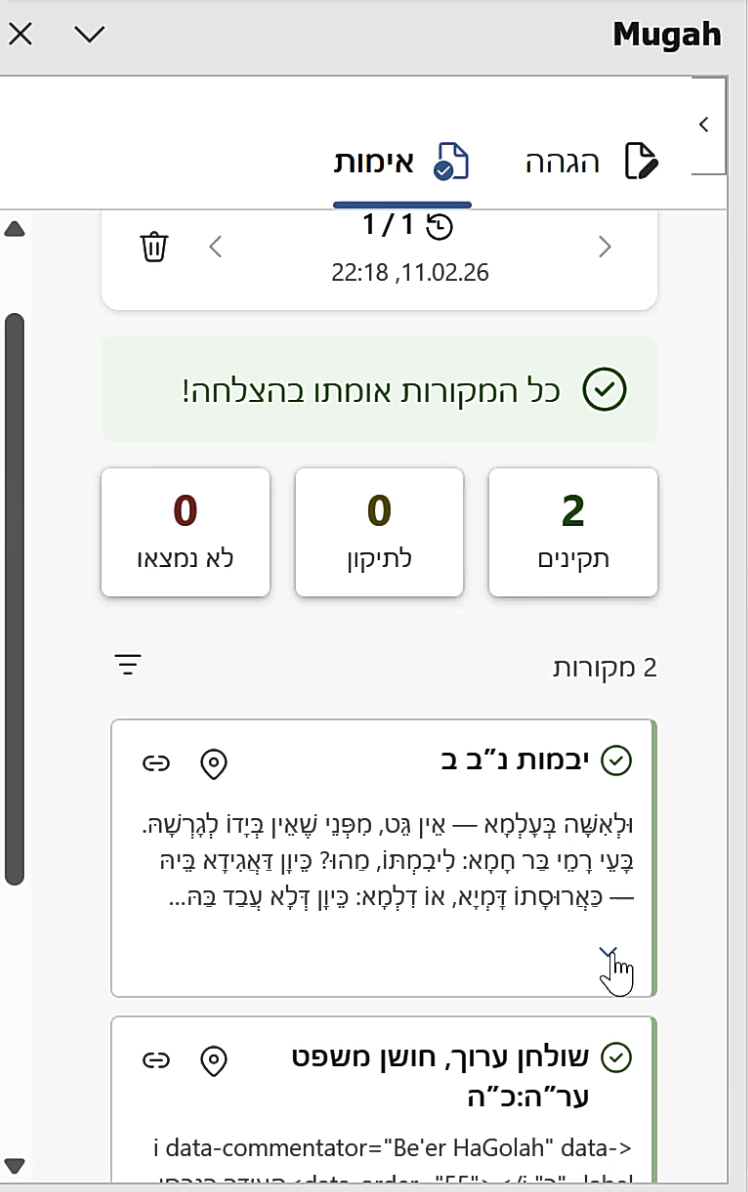
Review results סקרו תוצאות Each citation is marked with a status. Click on any result to navigate to its location in the document. כל ציטוט מסומן בסטטוס. לחצו על תוצאה כלשהי כדי לנווט למיקומה במסמך.
Understanding Verification Results הבנת תוצאות האימות
- Verified — The source was found and the reference is accurate. No action needed. תקין — המקור נמצא וההפניה מדויקת. אין צורך בפעולה.
- Needs Correction — The source was found but the reference contains an error (wrong page, chapter, etc.). The correct reference is suggested. לתיקון — המקור נמצא אבל ההפניה מכילה שגיאה (דף, פרק וכו' שגויים). ההפניה הנכונה מוצעת.
- Not Found — The source could not be found in the database. Verify manually or check for typos. לא נמצא — המקור לא נמצא במאגר. בדקו ידנית או חפשו שגיאות הקלדה.
Source Search חיפוש מקורות
The Source Search tool helps you find Torah sources relevant to your text. It uses AI to understand your query and searches across a vast library of Torah texts using the Sefaria database. כלי חיפוש מקורות עוזר לכם למצוא מקורות תורניים הרלוונטיים לטקסט שלכם. הוא מבין את השאילתה שלכם ומחפש במאגר נרחב של טקסטים תורניים באמצעות מאגר ספריא.
Search Modes מצבי חיפוש
Exact מדויק
Searches for an exact phrase or reference. Best when you know the specific source you're looking for. מחפש ביטוי או הפניה מדויקת. הכי טוב כשאתם יודעים את המקור הספציפי שאתם מחפשים.
Wide רחב
Broader semantic search. Finds sources related to the topic even if they don't match the exact wording. חיפוש סמנטי רחב. מוצא מקורות הקשורים לנושא גם אם הם לא תואמים לניסוח המדויק.
Custom מותאם
Write your own search prompt for full control over the search direction. כתבו הנחיית חיפוש משלכם לשליטה מלאה על כיוון החיפוש.
Working with Results עבודה עם תוצאות
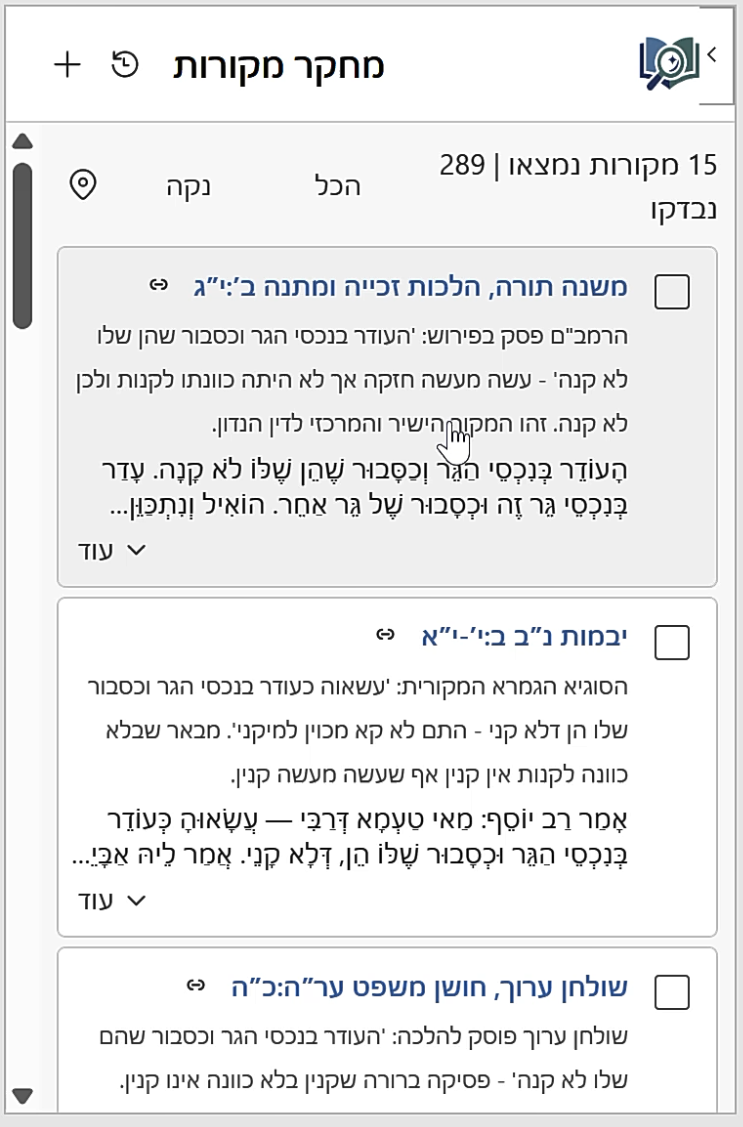
Each search result shows the source reference, a relevance score, and the source text. You can insert sources into your document in several ways: כל תוצאת חיפוש מציגה את ההפניה למקור, ציון רלוונטיות, ואת טקסט המקור. ניתן להכניס מקורות למסמך בכמה דרכים:
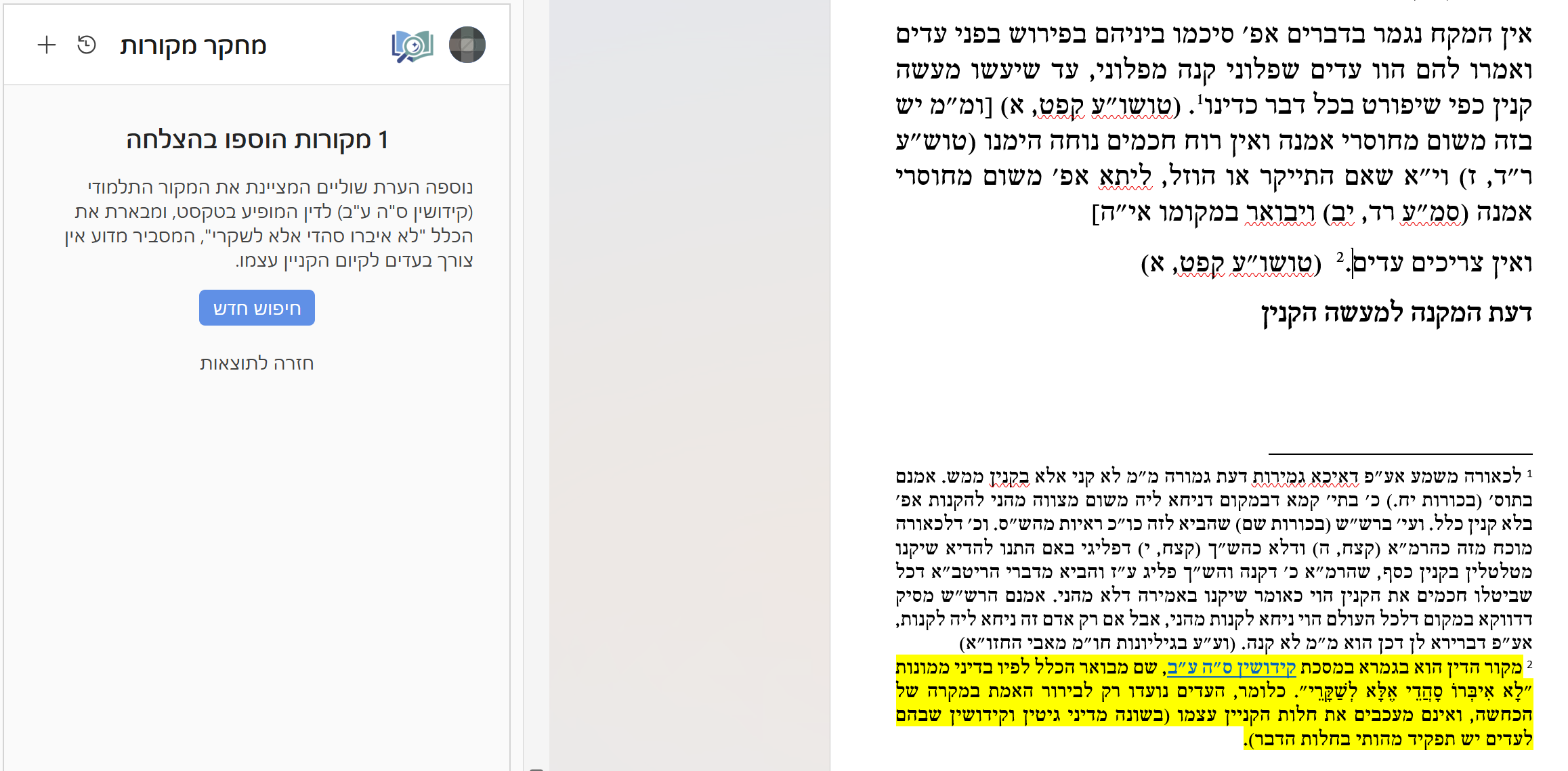
- Smart insert — The system reads the surrounding text and integrates the source naturally into your document — not just a copy-paste, but a contextual insertion that fits the flow of the text. the new text will be highlighted with a yellow marker to distinguish it from the original text. הכנסה חכמה — המערכת קוראת את הטקסט מסביב ומשלבת את המקור בצורה טבעית במסמך — לא סתם העתק-הדבק, אלא הכנסה בהקשר שמתאימה לזרימת הטקסט. הטקסט החדש יודגש במרקר צהוב כדי להבדילו מהטקסט המקורי.
- As a footnote — Insert the source as a footnote reference at the cursor position. כהערת שוליים — הכניסו את המקור כהערת שוליים במיקום הסמן.
- As an endnote — Insert as an endnote at the end of the document. כהערת סיום — הכניסו כהערת סיום בסוף המסמך.
- As inline text — Insert the source reference directly into the body text. כטקסט בתוך השורה — הכניסו את הפניית המקור ישירות לגוף הטקסט.
Bibliography Index מפתח מקורות
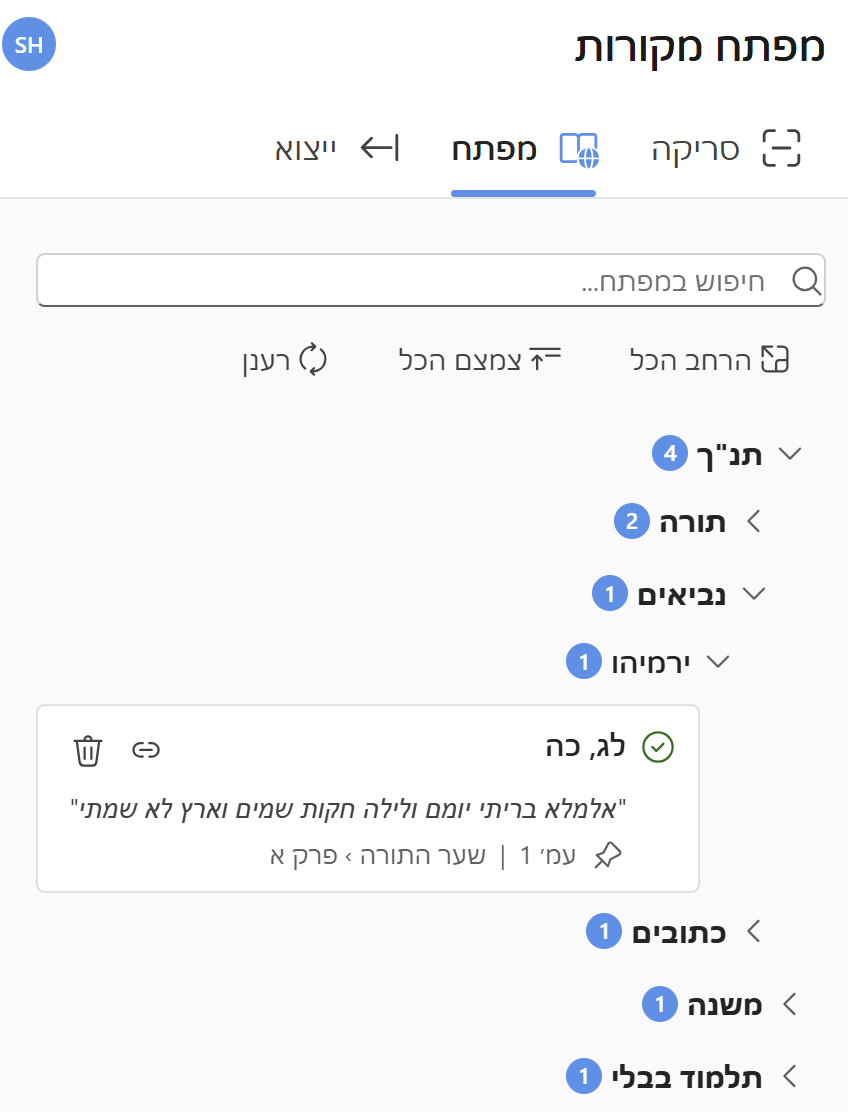
The Bibliography tool scans your entire document, extracts all Torah source citations, identifies them, and generates an organized, hierarchical index of sources. כלי המפתח סורק את המסמך כולו, מחלץ את כל ציטוטי המקורות התורניים, מזהה אותם, ומייצר מפתח מקורות מסודר והיררכי.
How to Use אופן השימוש
-
Open the Source Index panel פתחו את חלונית המפתח Click "Source Index" in Word's Home tab to open the bibliography panel. לחצו על "מפתח" בלשונית בית של Word כדי לפתוח את חלונית המפתח.
-
Scan the document סרקו את המסמך Select which sections to scan (paragraphs, footnotes, endnotes) and click "Scan for Sources". בחרו אילו חלקים לסרוק (פסקאות, הערות שוליים, הערות סיום) ולחצו על "סרוק מקורות".
-
Browse and edit עיינו וערכו Review the extracted sources in a tree view organized by category (Torah, Talmud, Rishonim, etc.). Expand/collapse branches and remove irrelevant entries. סקרו את המקורות שחולצו בתצוגת עץ מאורגנת לפי קטגוריה (תורה, תלמוד, ראשונים, וכו'). פתחו/סגרו ענפים והסירו רשומות לא רלוונטיות.
-
Export the index ייצאו את המפתח Preview the formatted bibliography, then insert it into your document or copy it to the clipboard. צפו בתצוגה מקדימה של המפתח המעוצב, ואז הכניסו אותו למסמך או העתיקו ללוח.
Document Cleanup ניקוי המסמך
When you're ready to send your document to a typesetter or publisher, run Document Cleanup to strip the invisible artifacts Mugah leaves behind during editing. This includes hidden content control wrappers around proofreading and verification anchors, navigation bookmarks dropped by the research and bibliography tools, and the stored history of every Mugah session inside the document. לפני שליחת המסמך לסדר או להוצאה לאור, הריצו את ניקוי המסמך כדי להסיר את ה"שאריות" הבלתי נראות שמוגה משאיר במהלך העריכה. כולל עטיפות פקדי תוכן סביב עוגני הגהה ואימות, סימניות ניווט שהושארו על ידי כלי המחקר והמפתח, וההיסטוריה השמורה של כל פעולת מוגה בתוך המסמך.
How to Use אופן השימוש
-
Open the user menu פתחו את תפריט המשתמש Click your avatar in the top corner of any Mugah panel (editor, research, or bibliography) to open the menu. לחצו על הסמל האישי בפינה העליונה של כל חלונית של מוגה (עורך, מחקר או מפתח) כדי לפתוח את התפריט.
-
Choose "Document Cleanup" בחרו ב"ניקוי המסמך" Pick "ניקוי המסמך" from the menu. A confirmation dialog opens and counts the artifacts it's about to remove. בחרו ב"ניקוי המסמך" מהתפריט. תיבת אישור תיפתח ותציג את כמות הפריטים שעתידים להימחק.
-
Review the counts and confirm בדקו את הספירה ואשרו The dialog shows how many content controls, bookmarks, and stored sessions will be deleted. Click "נקה הכל" to proceed, or "ביטול" to back out. The panel reloads after a successful cleanup. תיבת האישור מציגה כמה פקדי תוכן, סימניות ופעולות שמורות יימחקו. לחצו על "נקה הכל" לאישור, או על "ביטול" לחזרה. החלונית תיטען מחדש לאחר ניקוי מוצלח.
What gets removed מה נמחק
- Every content control in the document — including those Mugah created (proofreading anchors, verification anchors, rewrite wrappers, bibliography tags) and any user-inserted ones. כל פקדי התוכן במסמך — כולל אלה שמוגה יצרה (עוגני הגהה, עוגני אימות, עטיפות שכתוב, תגי מפתח) וכל פקד שהמשתמש הוסיף.
- Every bookmark in the document — including Mugah's research and bibliography navigation bookmarks and any bookmarks you added. כל הסימניות במסמך — כולל סימניות הניווט של מוגה למחקר ולמפתח וכל סימנייה שהוספתם.
- All stored Mugah session history — proofreading runs, source verification runs, rewrite history, research sessions, and the bibliography index data, all kept inside the document as Custom XML Parts. כל היסטוריית הפעולות השמורה של מוגה — הרצות הגהה, אימות מקורות, היסטוריית שכתוב, פעולות מחקר ונתוני מפתח המקורות, כולם שמורים בתוך המסמך כ-Custom XML Parts.
What is NOT removed מה לא נמחק
- Tracked changes are kept untouched. Use Word's review ribbon to accept or reject them on your own. שינויים במעקב נשארים במקומם. השתמשו בלשונית הסקירה של Word לקבל או לדחות אותם בעצמכם.
- Comments, document text, formatting, and footnotes/endnotes are all untouched. הערות, טקסט המסמך, עיצוב והערות שוליים/סיום נשארים ללא שינוי.
⚠️ This action cannot be undone for stored history. Word's native undo can restore content controls and bookmarks, but the deleted Custom XML Parts (Mugah's session history) are gone for good. Run cleanup only when you no longer need to revisit past Mugah runs in this document. ⚠️ הפעולה אינה ניתנת לביטול עבור הנתונים השמורים. ה-Undo של Word יכול לשחזר פקדי תוכן וסימניות, אבל ה-Custom XML Parts שנמחקו (היסטוריית הפעולות של מוגה) נעלמים סופית. הריצו ניקוי רק כאשר אתם לא צריכים יותר לחזור להרצות קודמות של מוגה במסמך.
Credits & Billing נקודות וחיוב
Mugah uses a pay-as-you-go credit system. Every AI operation consumes credits. There are no subscriptions — you purchase credit packs and use them at your own pace. מוגה משתמשת במערכת נקודות בתשלום לפי שימוש. כל פעולה צורכת נקודות. אין מנויים — רוכשים חבילות נקודות ומשתמשים בהן בקצב שלכם.
How Credits Work איך הנקודות עובדות
The number of credits consumed per operation depends on the complexity and length of the text being processed. Your current balance is always visible in the panel header, and you can track detailed usage in the Account Portal. מספר הנקודות הנצרכות לכל פעולה תלוי במורכבות ובאורך הטקסט המעובד. היתרה הנוכחית שלכם תמיד מוצגת בכותרת החלונית, וניתן לעקוב אחר שימוש מפורט בפורטל החשבון.
Typical Credit Cost by Feature עלות נקודות טיפוסית לפי תכונה
| Featureתכונה | Relative Costעלות יחסית | What Affects Costמה משפיע על העלות |
|---|---|---|
| Proofreadingהגהה | ~1 per section~1 לקטע | Number of sections scanned, text length and complexity. OCR-scanned text with many errors will cost more.אורך הטקסט, מורכבותו ומספר ההגהות הדרושות. טקסט שנסרק מ-OCR עם שגיאות רבות יצרוך יותר. |
| Proofreading (High Accuracy)הגהה (דיוק גבוה) | 2–5 per section2–5 לקטע | Same factors as standard proofreading, but uses a more advanced model.אותם גורמים כמו הגהה רגילה, אך משתמש במודל מתקדם יותר. |
| Rewriteשכתוב | 1–3 per run1–3 להפעלה | Text length × number of suggestionsאורך הטקסט × מספר ההצעות |
| Document Reviewביקורת מסמך | 2–30 per run2–30 להפעלה | Depends heavily on document size. A few paragraphs: 2–3. A full long document: 20–30.תלוי מאוד בגודל המסמך. כמה פסקאות: 2–3. מסמך שלם וארוך: 20–30. |
| Source Searchחיפוש מקורות | ~20 per search~20 לחיפוש | Search breadth and number of results. Uses many tokens even with a lighter model.רוחב החיפוש ומספר התוצאות. |
| Source Verificationאימות מקורות | Highגבוהה | Significantly more than other features. Each citation is cross-referenced against external databases.משמעותית יותר משאר התכונות. כל ציטוט נבדק מול מאגרי מידע חיצוניים. |
| Proofreading + Source Groundingהגהה + ביסוס במקורות | Highגבוהה | Combines proofreading cost with source lookups for every citation found.משלב עלות הגהה עם חיפוש מקורות לכל ציטוט שנמצא. |
| Bibliography Indexמפתח מקורות | Very highגבוהה מאוד | Scans the entire document and identifies every source. One of the most credit-intensive operations.סורק את כל המסמך ומזהה כל מקור. אחת הפעולות שצורכות הכי הרבה נקודות. |
To save credits:
- Keep Source Grounding off for routine proofreading.
- Run Source Verification only on final drafts when citations are settled.
- Use text selection to scan specific sections instead of the entire document.
- For rewriting, start with 1–2 suggestions and increase only if needed.
כדי לחסוך נקודות:
- השאירו ביסוס במקורות כבוי להגהה שגרתית.
- הפעילו אימות מקורות רק על טיוטות סופיות כשהציטוטים מוסדרים.
- השתמשו בסימון טקסט כדי לסרוק חלקים ספציפיים במקום את כל המסמך.
- בשכתוב, התחילו עם 1–2 הצעות והגדילו רק לפי הצורך.
Purchasing Credits רכישת נקודות
Credits are available in three packs. Purchase from the Account Portal or when prompted by the low-balance notification. נקודות זמינות בשלוש חבילות. רכשו דרך פורטל החשבון או כשתתבקשו על ידי התראת היתרה הנמוכה.
Tracking Your Usage מעקב אחר השימוש שלכם
Your current balance is always visible in the Editor panel header. For detailed usage analytics — feature breakdown, monthly trends, and purchase history — visit the Account Portal. היתרה הנוכחית שלכם תמיד מוצגת בכותרת חלונית העורך. לניתוח שימוש מפורט — פילוח לפי תכונה, מגמות חודשיות והיסטוריית רכישות — בקרו בפורטל החשבון.
Tips & Best Practices טיפים ושיטות עבודה
Getting Better Results קבלת תוצאות טובות יותר
- For rewriting, select short passages. The rewrite tool works best on focused selections — a paragraph or two at a time rather than long sections. This produces more accurate and coherent results. בשכתוב, סמנו קטעים קצרים. כלי השכתוב עובד הכי טוב על בחירות ממוקדות — פסקה או שתיים בכל פעם במקום קטעים ארוכים. כך מתקבלות תוצאות מדויקות ועקביות יותר.
- Write specific editing rules. Instead of generic rules like "fix grammar," write targeted rules: "ensure all Gemara references use format: Masechet Daf Amud" or "use ktiv maleh throughout." כתבו כללי עריכה ספציפיים. במקום כללים כלליים כמו "תקן דקדוק," כתבו כללים ממוקדים: "ודא שכל הפניות לגמרא בפורמט: מסכת דף עמוד" או "השתמש בכתיב מלא לאורך כל הטקסט."
- Use different rule sets for different passes. First pass: spelling and grammar. Second pass: formatting and style. Third pass: content and sources. This prevents the AI from being overwhelmed with too many rules at once. השתמשו בסטים שונים למעברים שונים. מעבר ראשון: כתיב ודקדוק. מעבר שני: עיצוב וסגנון. מעבר שלישי: תוכן ומקורות. כך המערכת לא מוצפת ביותר מדי כללים בבת אחת.
- Provide context in search queries. When searching for sources, describe not just the topic but the angle you need. "Rambam's opinion on X" is better than just "X." ספקו הקשר בשאילתות חיפוש. כשמחפשים מקורות, תארו לא רק את הנושא אלא את הזווית שאתם צריכים. "דעת הרמב"ם בנוגע ל-X" עדיף על סתם "X."
- Review all AI suggestions carefully. Mugah assists, but the final editorial judgment is always yours. The AI may occasionally miss nuances in rabbinical texts that a human editor would catch. סקרו את כל ההצעות בקפידה. מוגה מסייעת, אך שיקול הדעת העריכתי הסופי הוא תמיד שלכם. המערכת עלולה לפספס לעתים דקויות בטקסטים רבניים שעורך אנושי היה תופס.
Recommended Workflows תהליכי עבודה מומלצים
- Create a dedicated rule set with your house style (nikud policy, citation format, abbreviation standards).צרו סט כללים ייעודי עם סגנון הבית שלכם (מדיניות ניקוד, פורמט ציטוטים, תקני קיצורים).
- Run proofreading chapter-by-chapter with Source Grounding off.הריצו הגהה פרק-פרק עם ביסוס במקורות כבוי.
- After all chapters are clean, run Source Verification on the full document.אחרי שכל הפרקים נקיים, הריצו אימות מקורות על כל המסמך.
- Generate the bibliography index last, after all sources are verified.הפיקו את מפתח המקורות באחרונה, אחרי שכל המקורות אומתו.
- Use Source Search during writing to find relevant sources as you go.השתמשו בחיפוש מקורות במהלך הכתיבה כדי למצוא מקורות רלוונטיים תוך כדי.
- Run Document Review with the "Logical Consistency" prompt to check your argument flow.הריצו ביקורת מסמך עם הנחיית "עקביות לוגית" כדי לבדוק את זרימת הטיעון.
- Use Rewrite to try different phrasings for key paragraphs.השתמשו בשכתוב כדי לנסות ניסוחים שונים לפסקאות מפתח.
- Run proofreading as the final step before publishing.הריצו הגהה כשלב אחרון לפני הפרסום.
Writing Better Custom Prompts כתיבת הנחיות מותאמות טובות יותר
Whether writing editing rules, review prompts, or custom rewrite instructions, these principles apply: בין אם כותבים כללי עריכה, הנחיות ביקורת, או הנחיות שכתוב מותאמות — העקרונות הבאים חלים:
- Be specific, not general. "Replace ב"ה with בס"ד at the top of each page" is much better than "fix headers." היו ספציפיים, לא כלליים. "החלף ב"ה ב-בס"ד בראש כל עמוד" הרבה יותר טוב מ"תקן כותרות."
- Give examples. Show what correct output looks like: "References should look like: רמב"ם, הלכות שבת, פרק א, הלכה ג." תנו דוגמאות. הראו איך פלט נכון נראה: "הפניות צריכות להיראות כך: רמב"ם, הלכות שבת, פרק א, הלכה ג."
- State what NOT to change. "Do not modify direct biblical quotes" or "Leave Aramaic text as-is." ציינו מה לא לשנות. "אל תשנה ציטוטים ישירים מהתנ"ך" או "השאר טקסט ארמי כמו שהוא."
- Prioritize. List your most important rules first. If the list is long, consider splitting into multiple rule sets and running separate passes. תעדפו. רשמו את הכללים החשובים ביותר קודם. אם הרשימה ארוכה, שקלו לפצל לכמה סטים ולהריץ מעברים נפרדים.
Troubleshooting פתרון בעיות
- Add-in not appearing? Make sure you completed all installation steps. Try restarting Word. התוסף לא מופיע? ודאו שהשלמתם את כל שלבי ההתקנה. נסו להפעיל מחדש את Word.
- "Insufficient credits" error? Purchase credits from the Account Portal. שגיאת "אין מספיק נקודות"? רכשו נקודות מפורטל החשבון.
- Internet filter blocking? Ask your filtering provider to allow access to mugah.co. סינון אינטרנט חוסם? בקשו מספק הסינון שלכם לאפשר גישה ל-mugah.co.
- Need help? Contact us at support@mugah.co. צריכים עזרה? פנו אלינו ב-support@mugah.co.